This guide introduces cybersecurity beginners to Microsoft’s free Threat Modeling Tool. Learn the fundamentals of threat modeling and why it’s crucial for building secure applications. Follow our step-by-step tutorial, complete with a real-world example, to start identifying and mitigating security risks in your own projects.
In an increasingly interconnected world, safeguarding our digital assets is paramount. Whether you’re a budding developer, a seasoned IT professional, or simply curious about cybersecurity, understanding how to identify and mitigate potential threats is a crucial skill. This blog post will introduce you to a powerful and free tool from Microsoft: the Threat Modeling Tool. We’ll walk through its use step-by-step, complete with a real-world example and illustrative images, making threat modeling accessible even if you’re completely new to it!
What is Threat Modeling and Why Should You Care?
Imagine building a house. You wouldn’t just start laying bricks without a blueprint, right? You’d plan for strong foundations, secure doors and windows, and a robust roof to protect against the elements. Threat modeling is essentially the security blueprint for your software, system, or application. It’s a structured approach to:
- Identify Potential Threats: What could go wrong? Who might attack your system, and how?
- Understand Vulnerabilities: Where are the weaknesses in your design that attackers could exploit?
- Devise Countermeasures: How can you strengthen your system to prevent or mitigate these threats?
By doing this early in the development lifecycle, you can save significant time, effort, and money compared to fixing security flaws after deployment.
Getting Started: Downloading and Installing the Tool
The Microsoft Threat Modeling Tool is a standalone application that’s incredibly easy to get your hands on. Here is the direct download link for the latest version of the Microsoft Threat Modeling Tool:
https://aka.ms/threatmodelingtool
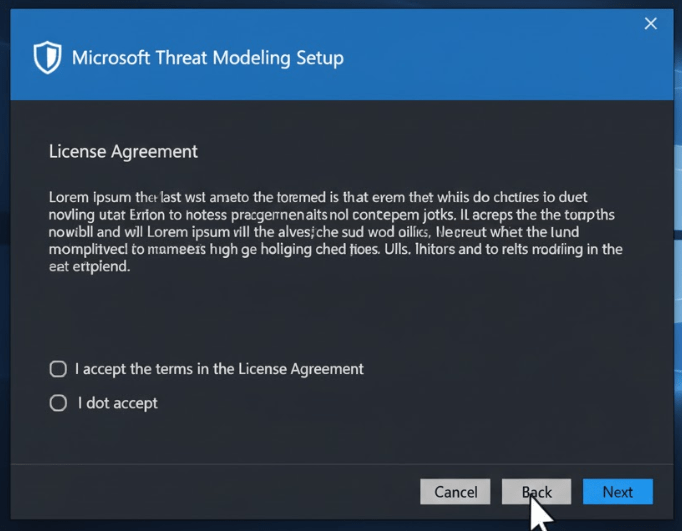
Once downloaded, run the installer. The process is straightforward: accept the license agreement, choose an installation location (the default is usually fine), and let the tool install.
Your First Threat Model: A Simple Online Store
Let’s imagine we’re building a simple online store where users can browse products, add them to a cart, and make purchases. We’ll use this as our real-time example.
Launch the Tool and Create a New Model
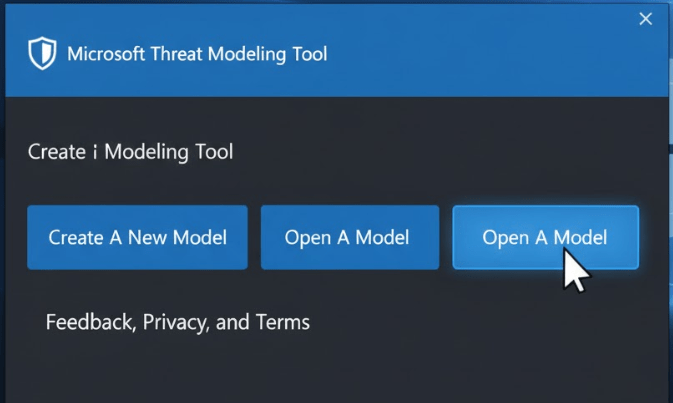
Open the Microsoft Threat Modeling Tool. You’ll be greeted with a start screen. Click on “Create a New Model.”
Thanks…
 Secure Scroll
Leave a comment